Test the visitor experience
Use a test mailbox you control and questions based on your published website or knowledge articles. The Remaker Digital Contact page shows an example installation.
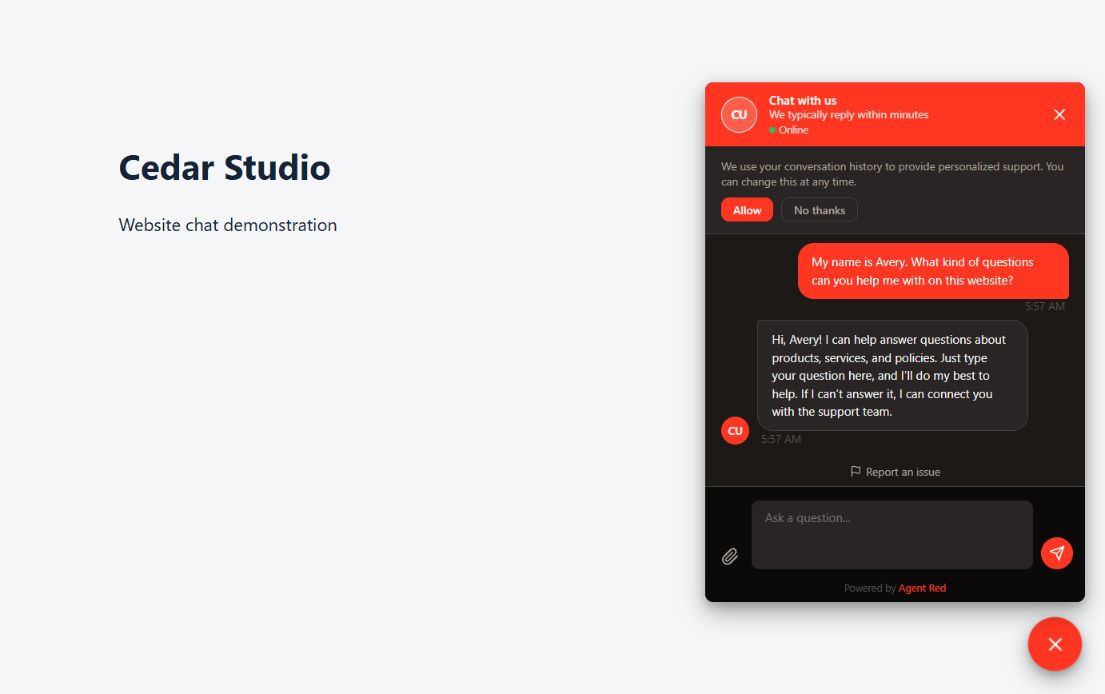
Open chat as a visitor
- Open a page with the widget in a private browser window. Select the chat launcher.
- If the widget asks for permission to store the conversation before chat can start, select Allow to run the test.
- Select a suggested question, if available, or type one in the message box and select Send.
- Compare the answer with the relevant website page or knowledge article. If the answer includes a link, check its destination. In Agent Red Admin, open Inbox and match the question and reply to the test conversation.
Select Close chat to close the panel.
Verify your email
- Open a new chat. If Login is available, select it before sending the first message.
- Enter your email and select Send code. Open the verification email and enter its six-digit code in the widget.
- Select Verify. Look for Email verified, then type your question. On the reference site, the verified welcome can be “Welcome. Your email is verified.”
The verification email says the code expires in ten minutes. To return to the chat as a guest, select Continue without verifying.
Send a text attachment
If your widget offers Attach file, select a UTF-8 plain-text .txt file. Check the filename below the message box. Use Remove attachment to take it out before sending.
Type a question about the attachment and select Send. The widget includes the attachment text with your message. If it reports that the attachment and message must fit within 2,000 characters, shorten the text or choose a smaller file.
Review the issue report form
If Report an issue is available, select it to open Report an Issue. The form offers Wrong information, Rude response, Not helpful, and Other. Selecting a category enables Submit Report. Select Cancel to return to the same chat without sending the report.
Ask for a human follow-up
Use a test account with escalation configured and test mailboxes for both sides.
- As a guest, ask Agent Red for a reply from a person. If it asks how to reach you, follow the contact steps the widget offers.
- In a fresh chat, verify your test email before asking for a follow-up. Include a distinctive test reference in the request. Look for the queue confirmation after the reply.
- Open Inbox in the same account. Find the test reference and check that the conversation shows Escalated and Verified.
- If your account sends a staff notification and visitor acknowledgment, open both test mailboxes and match the reference to the conversation.
Was this page helpful?