Escalation rules
Escalation is the process of routing a conversation from the AI agent to a human agent. These settings control when and how escalation happens.
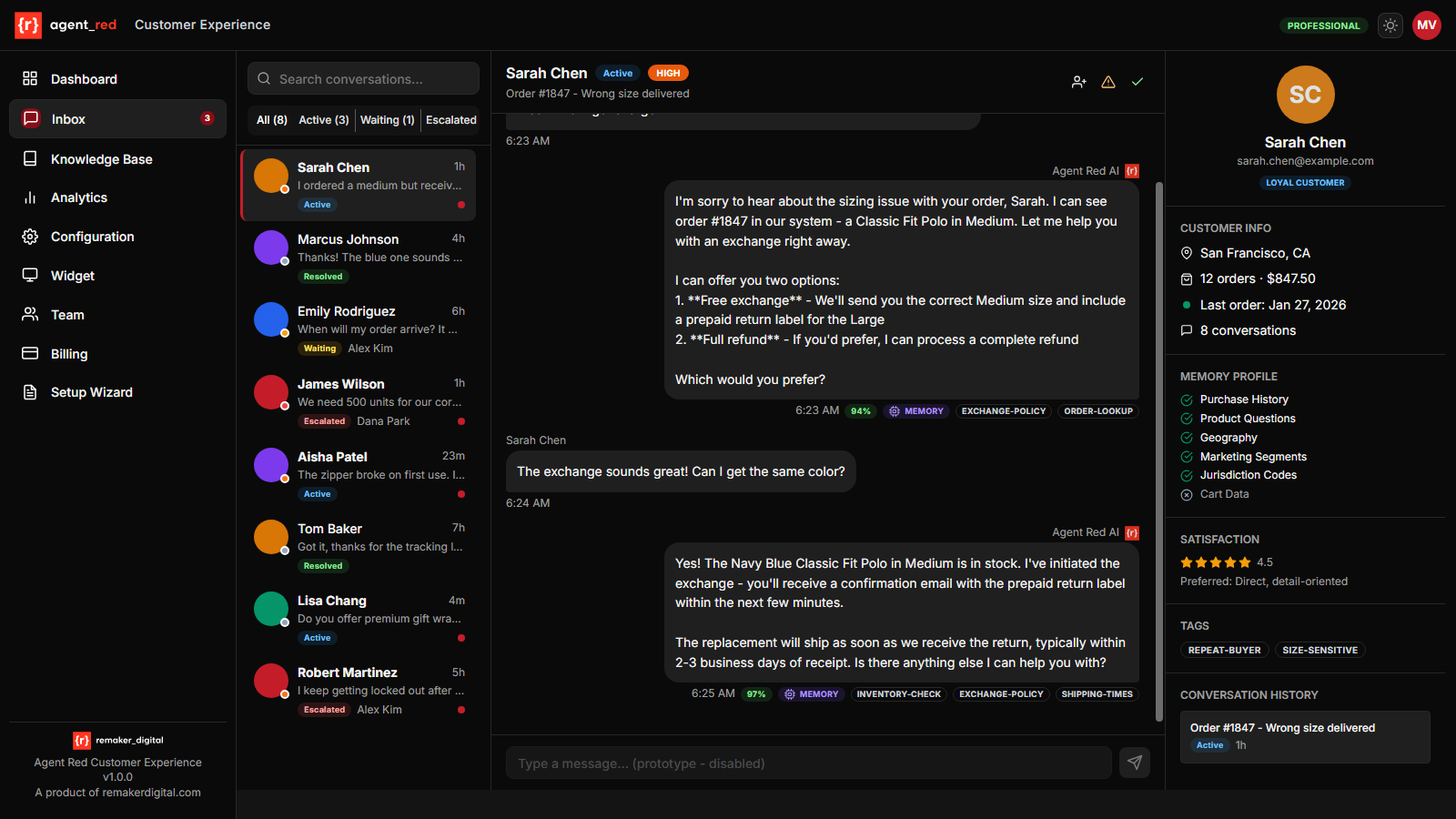
How escalation works
The escalation detection agent evaluates every customer message for signals that a human is needed. It considers:
- Confidence threshold — Is the AI confident enough in its ability to handle this conversation?
- Keyword triggers — Did the customer use a word or phrase that should always trigger escalation?
- Turn limit — Has the conversation exceeded a maximum number of back-and-forth exchanges?
- Sentiment signals — Is the customer expressing frustration, anger, or urgency? (automatic, not configurable)
If any of these conditions trigger, the conversation is escalated.
Escalation threshold
| Field | escalation_threshold |
| Type | Slider (0.0–1.0) |
| Default | Starter: 0.7, Professional: 0.6, Enterprise: 0.5 |
| Affects | Escalation handler |
The confidence level below which the AI escalates instead of responding. The escalation agent assigns a confidence score (0.0 to 1.0) to each conversation turn. If the score drops below this threshold, the conversation is routed to a human.
| Threshold | Behavior |
|---|---|
| 0.3–0.4 | Very aggressive AI. Escalates rarely. Only use if you have a very comprehensive knowledge base and accept that some customers may get suboptimal AI answers. |
| 0.5–0.6 | Balanced. The AI handles most questions but escalates when it is unsure. Good for stores with solid knowledge bases. |
| 0.7–0.8 | Conservative. The AI escalates more often. Good for stores that are still building their knowledge base or where customer issues tend to be complex. |
| 0.9–1.0 | Very conservative. The AI escalates almost everything. Effectively turns Agent Red into a triage system that classifies intent and routes to humans. |
Why tiers have different defaults:
- Starter (0.7): New merchants typically have smaller knowledge bases, so a higher threshold avoids low-quality AI responses.
- Professional (0.6): Merchants on Professional are expected to have more complete knowledge bases and are comfortable with more AI autonomy.
- Enterprise (0.5): Enterprise merchants have typically invested in thorough knowledge base setup and want maximum automation.
Recommendation: Start with the default for your tier. After 1–2 weeks, review escalated conversations in the Inbox. If many escalated conversations could have been handled by the AI, lower the threshold by 0.05–0.1. If customers are getting poor AI answers, raise it.
Escalation keywords
| Field | escalation_keywords |
| Type | Tag list (up to 30 keywords, each up to 50 characters) |
| Default | 9 built-in keywords (see below) |
| Affects | Escalation handler |
Words or phrases that immediately trigger escalation, regardless of the confidence score. When a customer message contains any of these keywords (case-insensitive), the conversation is escalated.
Default keywords (included automatically):
speak to a person, human agent, talk to a human, manager, supervisor, complaint, lawyer, refund, cancel my subscription
You can add, remove, or replace these defaults. If you clear the list entirely, only the confidence threshold and turn limit will trigger escalation.
Additional keywords to consider:
real person/talk to a personlegal/sueclose my account/cancel my accountBBB/report
Tips:
- Keep the list focused on high-intent phrases. Adding too many common words (like "problem" or "help") will cause unnecessary escalation.
- Include variations: if you add
refund, also considerget my money back. - Test each keyword by imagining a sentence a customer would say containing it. If that sentence should always go to a human, add it. If it sometimes should not, leave it out and let the confidence threshold handle it.
Escalation notifications
When a conversation is escalated, Agent Red sends email notifications to team members assigned to the matching escalation category. This replaces the previous single-email-address approach with role-based routing.
How it works:
- The AI detects an escalation trigger (keyword, threshold, or turn limit).
- The escalation handler determines the reason and urgency level (high, medium, or low).
- Agent Red queries the Team for active escalation agents assigned to a matching category.
- Each matching agent receives an email notification with:
- Customer name (if known)
- Escalation reason
- Urgency level
- Direct link to the conversation in the admin Inbox
Urgency levels and severity:
| Urgency | Severity | When |
|---|---|---|
| High | Critical | Customer explicitly requests escalation, legal threats, cancellation |
| Medium | Warning | Confidence threshold breach, repeated clarification requests |
| Low | Informational | Turn limit reached, idle timeout |
If no escalation agents are configured: Escalated conversations appear in the Inbox but no email notification is sent. Admins and superadmins should check the Inbox regularly.
To configure escalation agents: Go to Team management and invite team members with the Escalation agent role.
Maximum AI turns before escalation
| Field | max_ai_turns_before_escalation |
| Type | Number (1–50) |
| Default | 10 |
| Affects | Escalation handler |
Forces escalation after the conversation reaches this many back-and-forth exchanges (turns), even if the confidence score is above the threshold. This is a safety net to prevent customers from getting stuck in a loop with the AI.
How it works:
- A "turn" is one customer message followed by one AI response.
- The counter starts at 1 with the first exchange.
- When the counter reaches the limit, the next response includes an escalation notice.
| Value | Use case |
|---|---|
| 3–5 | For stores where AI is primarily a triage tool and humans should handle extended conversations. |
| 8–12 | Standard range. Most product and policy questions resolve within 5–8 turns. |
| 15–50 | For stores with extensive knowledge bases where complex, multi-step conversations are expected (e.g., troubleshooting technical products). |
Recommendation: Start with 10. Review the Inbox after the first week — if most conversations resolve in 3–4 turns, lowering to 6–8 gives customers a faster path to a human when needed.
What happens when a conversation is escalated
- The AI sends a handoff message to the customer explaining that a human agent will take over.
- The conversation appears in the admin Inbox with an "Escalated" status badge.
- Escalation agents assigned to the matching category receive an email notification with a link to the conversation.
- The AI does not send further responses in the conversation unless a team member explicitly reassigns it back to the AI.
Testing your escalation rules
Before going live, verify that escalation triggers work as expected. Follow this testing workflow:
Step 1 — Test keyword triggers
- Open the chat widget on your website (or the widget preview).
- Type a message containing one of your escalation keywords (e.g., "I want to speak to a person").
- Verify that the AI responds with an escalation handoff message.
- Check the Inbox — the conversation should appear with an Escalated status badge.
- Verify that the escalation agent assigned to the matching category received an email notification.
Repeat for each keyword in your list. If a keyword does not trigger escalation, check that it matches exactly (escalation keywords are case-insensitive but must match as a substring).
Step 2 — Test threshold behavior
- Start a new conversation with a question outside your knowledge base coverage (something the AI should not be confident about).
- Continue the conversation for several turns, asking progressively more specific questions that the AI cannot answer.
- The AI should escalate when its confidence drops below your threshold setting.
- If the AI does not escalate when it should, lower the threshold by 0.05–0.1.
Step 3 — Test turn limits
- Start a new conversation.
- Continue chatting until you reach the maximum turn count (default: 10 turns).
- After reaching the limit, the AI should escalate the conversation automatically.
- Verify the escalation appears in the Inbox.
Step 4 — Test notification routing
- Ensure you have at least one escalation agent configured in Team management with assigned categories.
- Trigger an escalation (using any of the methods above).
- Check that the correct agent receives the email notification based on the escalation category.
- Click the link in the notification email and verify it opens the correct conversation in the Inbox.
Tuning after launch
After your first 1–2 weeks of live traffic:
| Metric to check | Where to find it | Action |
|---|---|---|
| Escalation rate | Dashboard | If above 20%, your threshold may be too high or your knowledge base may have gaps |
| False escalations | Inbox (Escalated filter) | Review escalated conversations that the AI could have handled. Lower the threshold by 0.05 |
| Missed escalations | Inbox (Resolved filter) | Look for resolved conversations where the customer expressed frustration but was not escalated. Add the phrases they used as keywords |
| Notification gaps | Team page (Escalations column) | If an agent has zero escalations and conversations are going unhandled, check their category assignments |
© 2026 Remaker Digital, a DBA of VanDusen & Palmeter, LLC. All rights reserved.
Was this page helpful?