Team management
Team management lets you invite colleagues to the Agent Red admin console and control what each person can see and do.
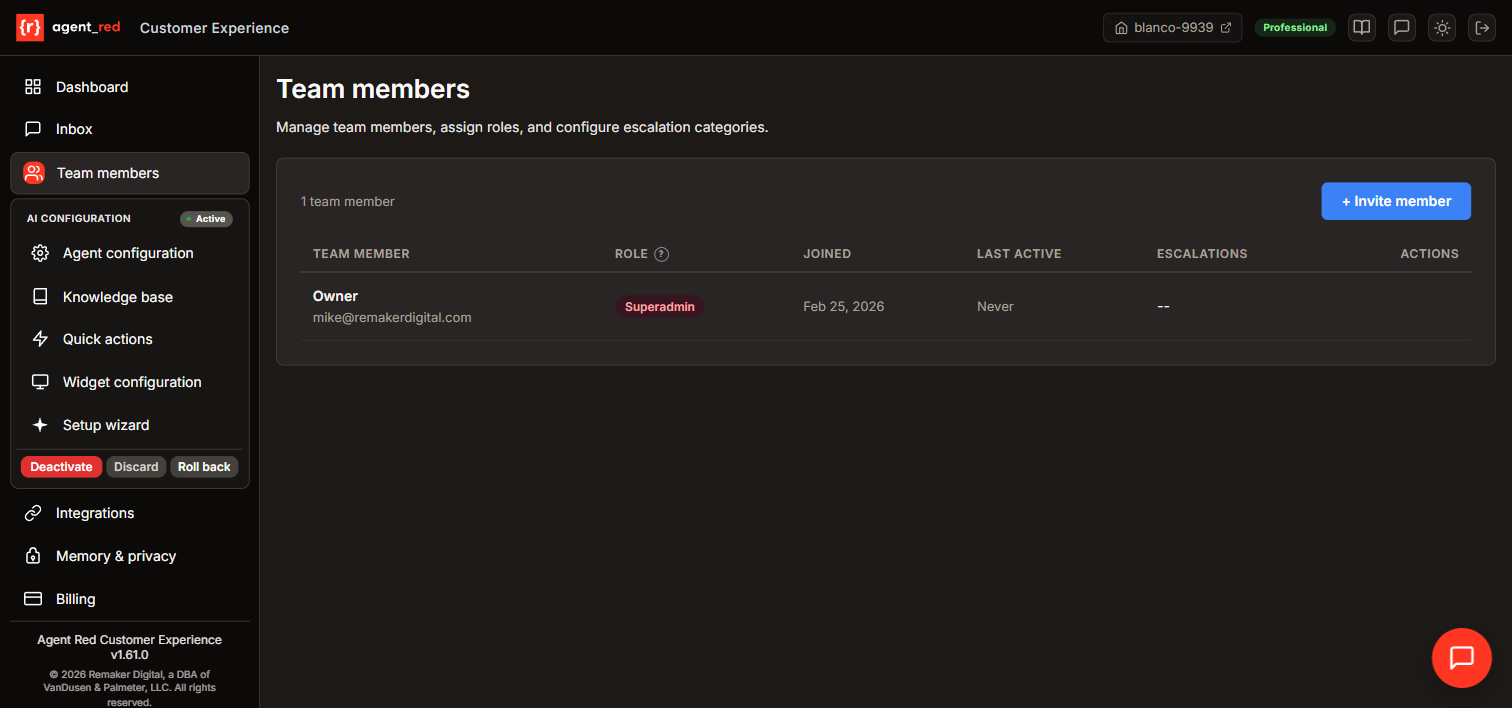
Team operations workflow
Roles
Agent Red uses four roles. Each role determines which pages a team member can access and whether they can make changes.
| Role | Access | Can edit? | Notes |
|---|---|---|---|
| Superadmin | All pages | Yes | Created automatically when you install Agent Red. Cannot be deleted. Hidden from other team members. |
| Admin | All pages except superadmin visibility | Yes | Full administrative access. Can invite and manage other team members. |
| Escalation agent | Inbox only | Read-only | Sees escalated conversations assigned to their categories. Cannot access configuration or billing. |
| Viewer | All pages | Read-only | Can view dashboards, configuration, and knowledge base but cannot make changes. |
Superadmin
The superadmin account is created automatically when your store installs Agent Red. It is tied to the account holder's email address.
- The superadmin is not visible in the Team page to other users. This prevents accidental deletion or modification.
- Only the superadmin can see and manage their own account.
- The superadmin API key is delivered to the account holder's email during installation.
Escalation agent
Escalation agents are team members who handle customer conversations that the AI cannot resolve. They have access to the Inbox only, filtered to conversations matching their assigned escalation categories.
When a conversation is escalated, agents in the matching category receive an email notification with a link to the conversation.
Escalation categories: Service, Support, Sales, Account, Technical Assistance, General Inquiry.
Each escalation agent can be assigned to one or more categories.
Workload visibility
The Team page shows an Escalations column for escalation agents, displaying the number of currently unresolved escalations assigned to each agent. This helps admins monitor workload distribution and identify agents who may be overloaded.
Inviting team members
- Go to Team in the sidebar.
- Click Invite member.
- Enter the person's email address.
- Select a role (Admin, Escalation agent, or Viewer).
- If the role is Escalation agent, select one or more escalation categories.
- Click Send invite.
The invited person receives an email with their API key. They use this key to log in to the admin console.
API key authentication
Agent Red uses API keys instead of passwords for admin console access. Each team member receives a unique key tied to their email address.
Key format: ar_user_{tenant}_{random}
- Keys are generated automatically when a team member is invited.
- Each key maps to exactly one team member and one role.
- If a key is lost, an admin can issue a new one (the old key is immediately invalidated).
- Disabling or deleting a team member invalidates their key immediately.
Logging in
- Go to the standalone admin URL.
- Enter your API key.
- The console loads with pages and permissions matching your role.
Managing team members
Enable or disable
Toggle a team member's status from the Team page. Disabled members cannot log in but their record is preserved.
Change role
Admins and superadmins can change a team member's role from the Team page using the inline role selector.
Regenerate API key
If a team member loses their key, an admin can regenerate it from the Team page. The old key stops working immediately.
Delete a team member
Admins can delete any team member except the superadmin. Deleting a member invalidates their API key. A confirmation dialog appears before the deletion is finalized.
Day-to-day team management
Adding your first escalation agent
When you start receiving escalated conversations, you need at least one team member with the Escalation agent role to handle them.
- Go to Team in the sidebar.
- Click Invite member.
- Enter the team member's email address and optionally their name.
- Select Escalation agent as the role.
- Select one or more escalation categories — choose the categories that match this person's expertise:
- Service — general customer service questions
- Support — technical support and troubleshooting
- Sales — product recommendations, pricing, upselling
- Account — account management, billing inquiries
- Technical Assistance — complex technical issues
- General Inquiry — catch-all for unclassified escalations
- Click Send invite.
- The team member receives an email with their API key for logging in.
Monitoring team workload
The Team page displays an Escalations column for each escalation agent, showing the number of currently unresolved escalations assigned to them. Use this to:
- Identify agents who may be overloaded.
- Rebalance category assignments if one category generates significantly more escalations.
- Add more escalation agents to high-volume categories.
Changing a team member's role
- Find the team member in the table.
- Click the role dropdown in their row.
- Select the new role.
- The change takes effect immediately — no save button required.
If changing from Escalation agent to another role, any pending escalation assignments for that member will need to be reassigned.
Suspending access temporarily
Use the Active/Disabled toggle to suspend a team member's access without deleting them:
- Toggle the switch in the Status column to Disabled.
- The member's API key is immediately invalidated — they cannot log in.
- Toggle back to Active to restore access. The same API key works again.
This is useful for temporary absences (vacation, leave) where you want to preserve the member's record and role.
Role-based page access
| Page | Superadmin | Admin | Escalation agent | Viewer |
|---|---|---|---|---|
| Dashboard | Full | Full | — | Read-only |
| Inbox | Full | Full | Own categories (read-only) | Read-only |
| Team | Full (sees self) | Full (no superadmin) | — | — |
| Agent identity | Full | Full | — | Read-only |
| Knowledge base | Full | Full | — | Read-only |
| Quick actions | Full | Full | — | — |
| Widget configuration | Full | Full | — | — |
| Integrations | Full | Full | — | — |
| Memory & privacy | Full | Full | — | Read-only |
| Account & billing | Full | Full | — | Read-only |
| Setup wizard | Full | Full | — | — |
© 2026 Remaker Digital, a DBA of VanDusen & Palmeter, LLC. All rights reserved.
Was this page helpful?